Enrollment Guide
Get Your SevisPass
Step-by-step guide to enrolling in Papua New Guinea's digital identity system. Follow these instructions to download SevisWallet and create your SevisPass credential.
What You'll Need
Before you begin enrollment, make sure you have the following requirements ready.
Smartphone
Android 8+ or iOS 14+
Camera
Minimum 8MP with autofocus
Phone Number
Active number for SMS verification
Enrollment Steps
Follow these steps to complete your enrollment and receive your SevisPass credential.
Download & Install SevisWallet
Get the SevisWallet app from the Google Play Store or Apple App Store. The app is free to download and use.

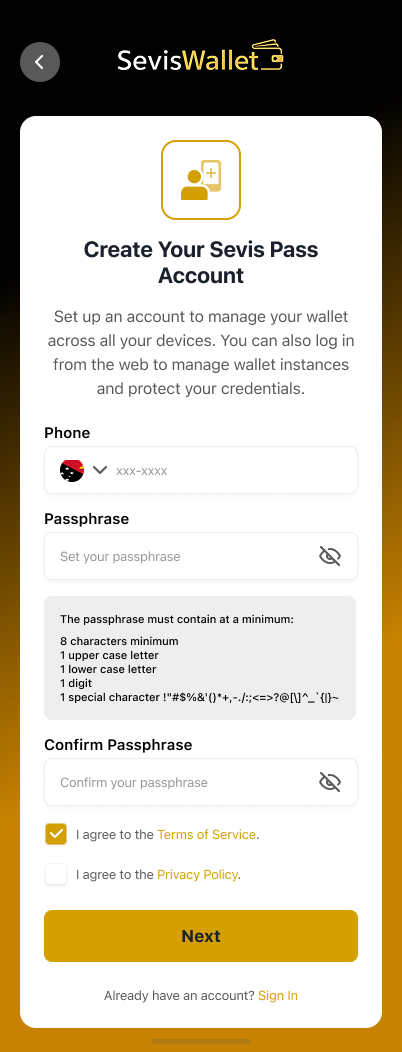
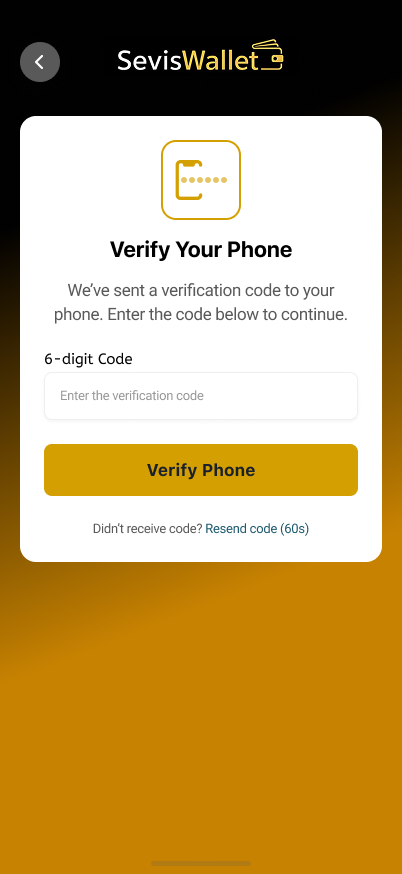
Create Your Account
Open the app and tap 'Create Account'. Enter your phone number to receive a one-time password (OTP) via SMS.
Identity Validation
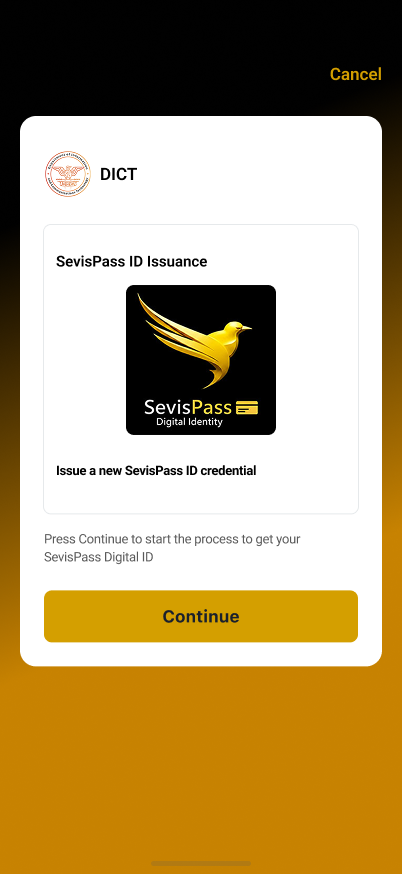
Complete the four-step identity validation process to verify your identity and create your SevisPass credential.
Validation Workflow Overview
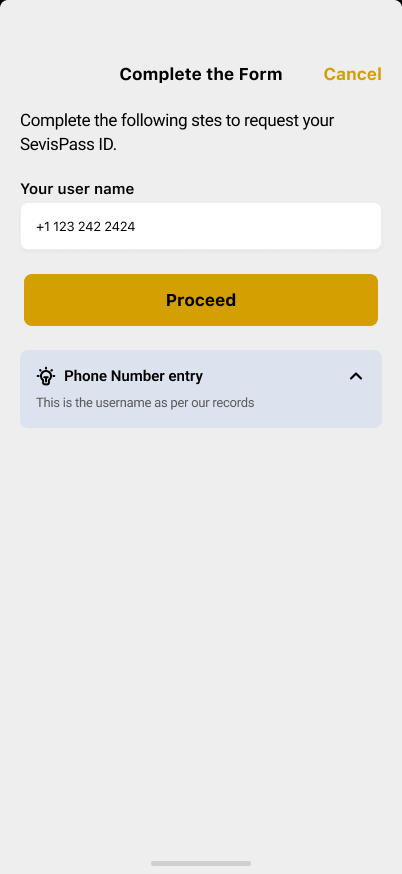
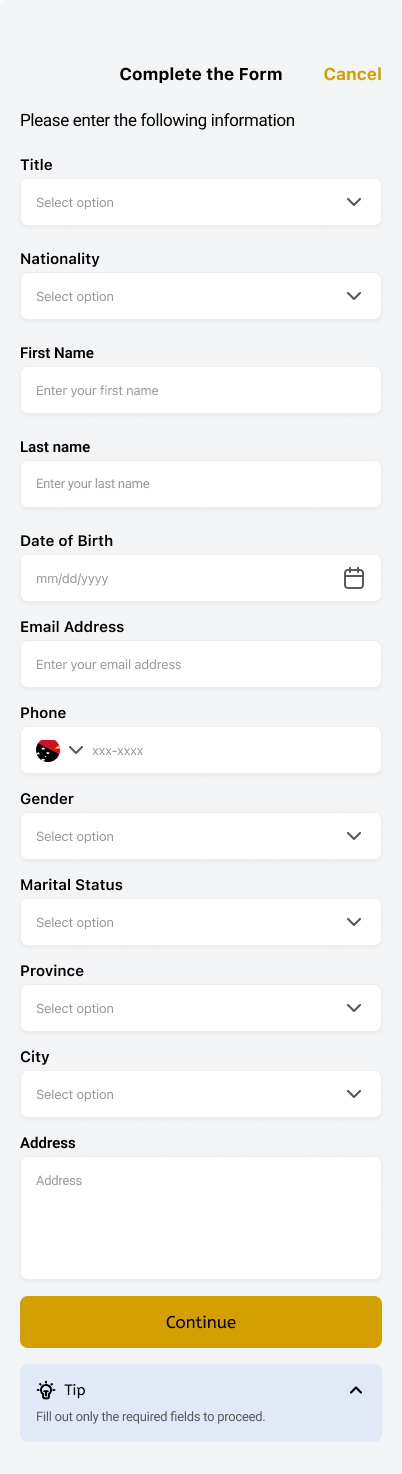
A. Enter Demographic Data
Provide your personal information including name, date of birth, and address.
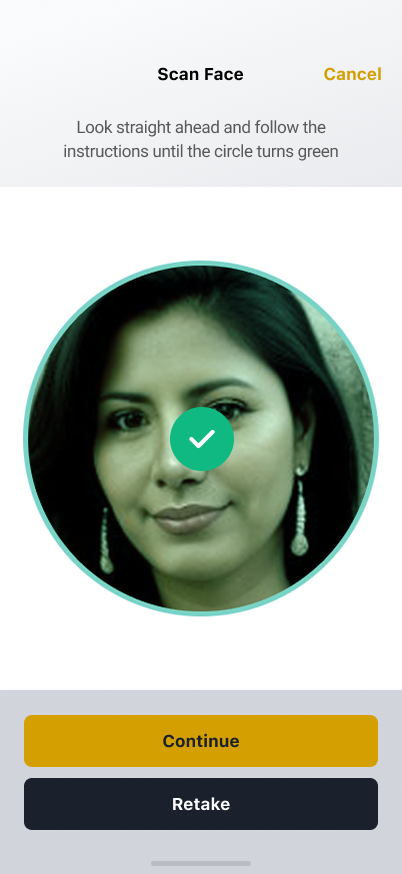
B. Facial Biometric Capture
Follow the on-screen instructions to capture your face. Keep your face centered and follow the prompts.

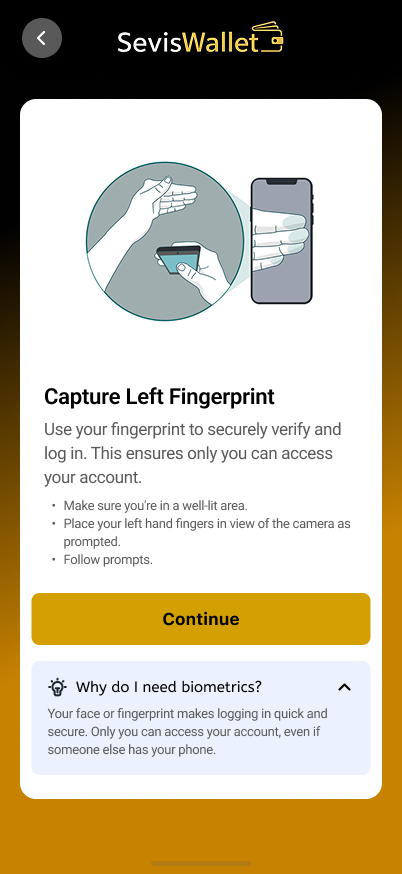
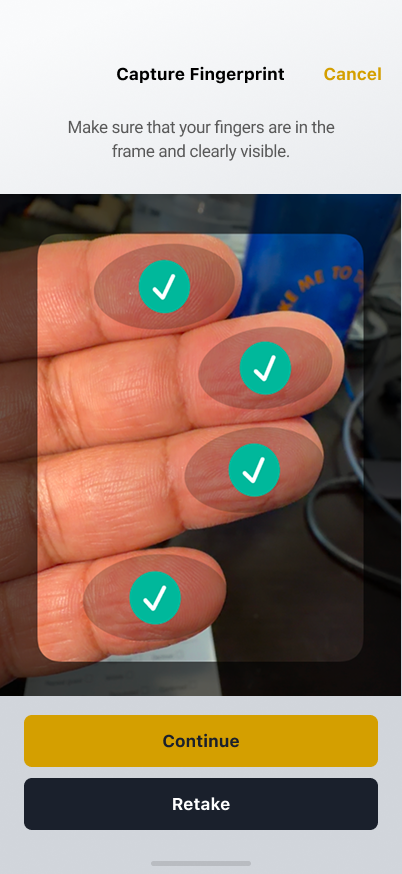
C. Fingerprint Capture
Capture your fingerprints using the contactless capture feature. All 10 fingers will be captured.
Receive Your SevisPass
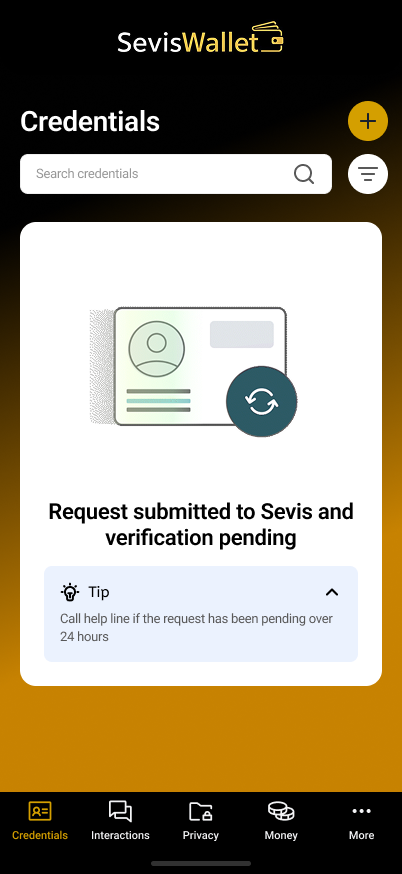
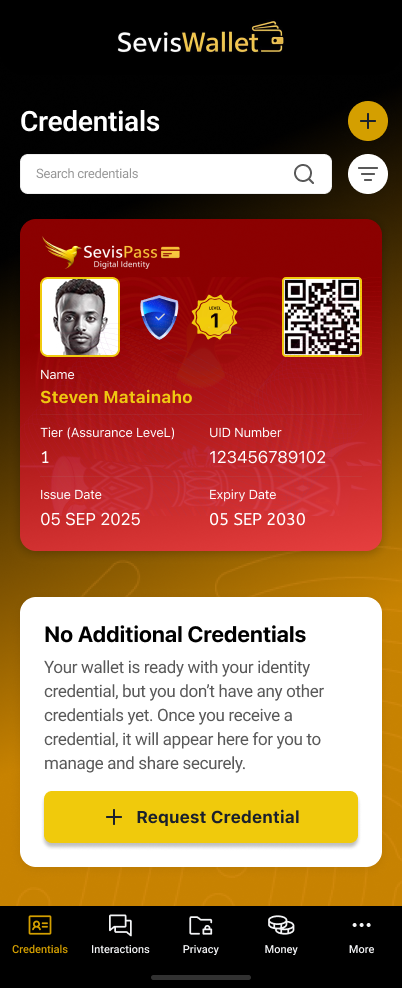
After successful validation, your SevisPass credential will be issued to your wallet. You now have a Tier 1 foundational digital identity.
Video Tutorial
Watch our step-by-step video walkthrough to see the enrollment process in action.
Troubleshooting FAQ
Having trouble? Here are solutions to common enrollment issues.
I didn't receive the OTP code?
Wait 60 seconds and request a new code. Ensure your phone number is correct and has active service. Check if SMS is blocked by your carrier. If issues persist, try using a different phone number or contact support.
Face capture keeps failing?
Ensure you're in a well-lit area with even lighting. Remove glasses, hats, or anything covering your face. Hold the phone at eye level and keep your face centered in the frame. Follow the on-screen instructions carefully.
My credential wasn't issued?
The validation process may take a few moments. If your credential isn't issued after 5 minutes, check your internet connection and try again. Your biometric data may need additional verification—wait for an SMS notification or contact support.
Liveness check is not working?
Ensure you're in good lighting and follow the prompts exactly. Move your head slowly when prompted. If using an older device, the camera quality may affect liveness detection. Try cleaning your camera lens.
The app crashes during enrollment?
Close other apps to free up memory. Ensure your device meets the minimum requirements (Android 8+ or iOS 14+). Update to the latest version of SevisWallet from the app store. If crashes persist, restart your device and try again.
Can I enroll on a feature phone?
Initial enrollment requires a smartphone with a camera for biometric capture. After enrollment, you can visit a registered agent for assisted services.
Need Help?
If you're experiencing issues with enrollment or have questions, our support team is here to help.